How to take product photos with iPhone
Studio-quality photos from your pocket
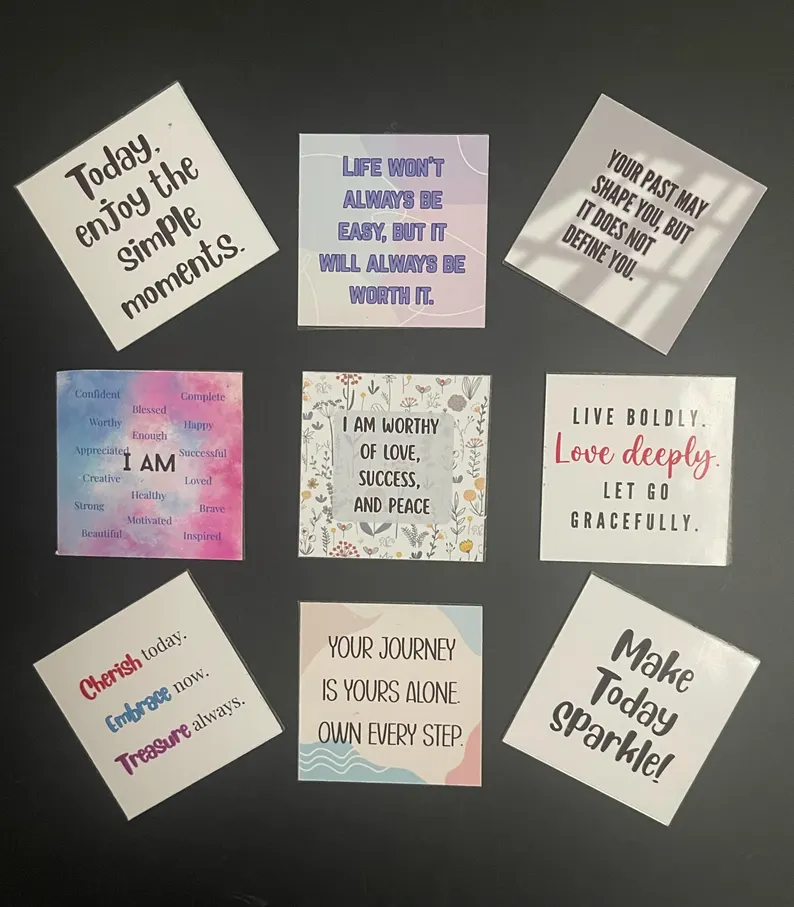
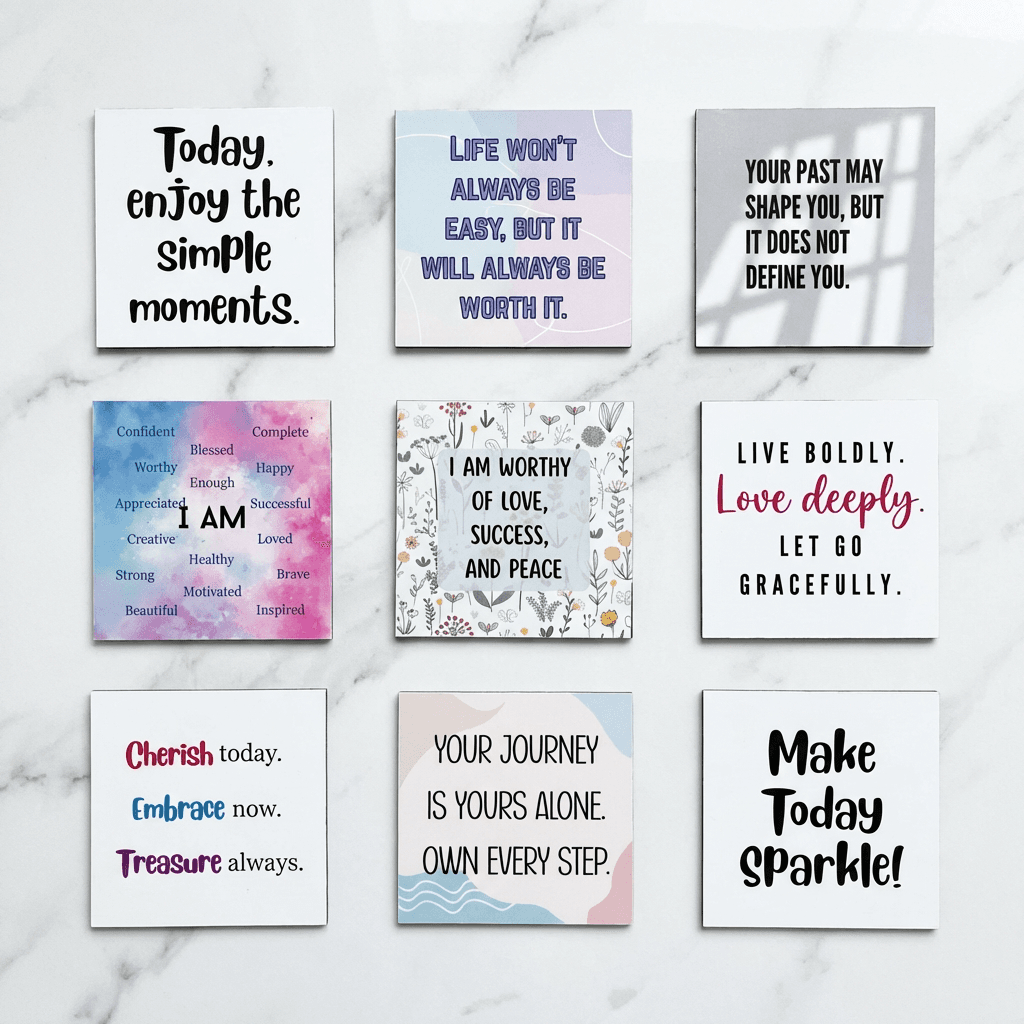
Transform your product photos with AI-powered flat lay photography.
What you'll need
- iPhone (8 or newer recommended)
- White poster board or foam core
- Natural window light or desk lamp
- Phone tripod or stable surface
- Optional: clip-on macro lens
Step-by-step guide
Clean your lens
iPhone lenses collect fingerprints and pocket dust. Wipe with a microfiber cloth before every shoot for sharp images.
Set up proper lighting
Position your product near a large window for soft, natural light. Avoid direct sunlight which creates harsh shadows. Use white foam boards to bounce light into shadows.
Create your background
Use white poster board curved against a wall for seamless backgrounds. For lifestyle shots, choose surfaces that complement your product.
Optimize camera settings
Tap to focus on your product and hold to lock focus. Swipe down to decrease exposure slightly for cleaner whites. Enable grid lines for better composition.
Take multiple shots
Capture from multiple angles: front, sides, top-down, and 45-degree angles. Use burst mode for action shots or when lighting changes.
Pro tips
Use Portrait mode for products with depth to create background blur
Enable ProRAW on iPhone 12+ for maximum editing flexibility
Try the macro feature on iPhone 13 Pro+ for detail shots
Use the self-timer to avoid camera shake when pressing the shutter
Common mistakes to avoid
Zooming digitally instead of moving closer (reduces quality)
Shooting with flash which creates unnatural lighting
Not locking focus and exposure before shooting
Recommended photo styles
The easier way: AI product photography
While these manual techniques work great, AI can achieve professional results in seconds. Upload your product photo and let AI handle the lighting, backgrounds, and styling automatically.
Try AI product photographyFrequently asked questions
Which iPhone model is best for product photography?
iPhone 13 Pro and newer offer the best features including macro mode, ProRAW, and multiple lenses. However, any iPhone 8 or newer can produce excellent product photos.
Should I use Portrait mode for products?
Portrait mode works well for products with depth like bottles or boxes. It creates a pleasing background blur but may struggle with small or flat items.
What apps are best for editing iPhone product photos?
The built-in Photos app handles basic edits well. For more control, try Snapseed (free) or Lightroom Mobile.
Related guides
Related resources
Ready to create professional photos?
Skip the setup and create stunning product photos with AI. Start with 3 free credits.
Start creating free