How to remove background from product photos
Clean cutouts that sell

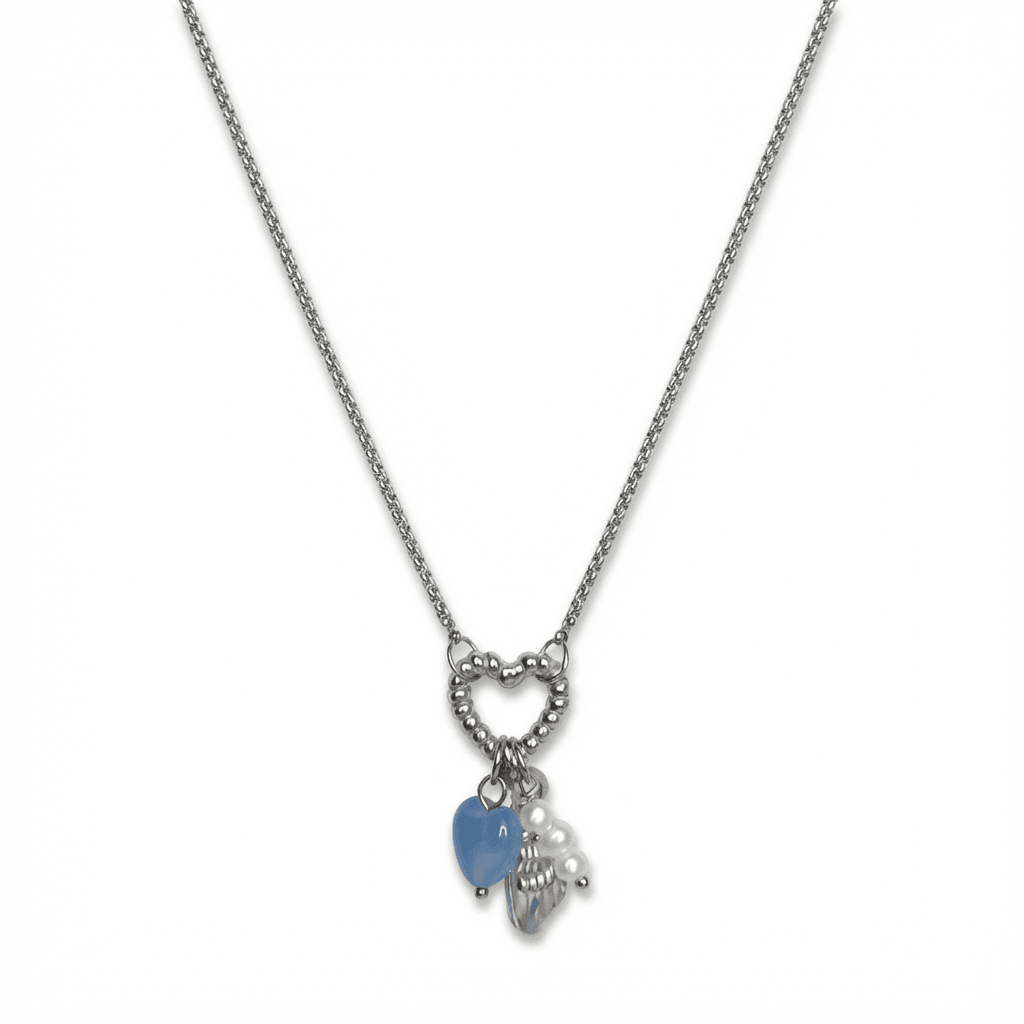
Transform your product photos with AI-powered studio white photography.
What you'll need
- Photo editing software (Photoshop, GIMP, or online tools)
- Original high-resolution images
- Clean, well-lit source photos
- Patience for complex edges
Step-by-step guide
Start with quality source images
Background removal is only as good as your source. Sharp, well-lit photos with clear product edges produce the best results.
Choose your method
Options include AI removal tools (fastest), Photoshop quick selection (good for simple shapes), or manual pen tool work (best for complex edges).
Make your selection
Use AI tools for quick results, or in Photoshop use Select Subject, Quick Selection, or Object Selection tools. Refine with Select and Mask.
Refine the edges
Use feathering (0.5-2px) for natural edges. Avoid harsh, jagged cutouts. For hair or fabric, use the Refine Edge brush in Select and Mask.
Check your work
Place the cutout on white, black, and colored backgrounds to verify edge quality. Look for halos, jagged edges, or missing details.
Pro tips
Save as PNG with transparency for maximum flexibility
Keep the original image with background for future re-edits
For batch processing, AI tools save enormous time
Add a subtle drop shadow to ground products on white backgrounds
Common mistakes to avoid
Starting with poorly lit images with indistinct edges
Over-sharpening edges which creates halos
Not checking cutout quality against multiple background colors
Recommended photo styles
The easier way: AI product photography
While these manual techniques work great, AI can achieve professional results in seconds. Upload your product photo and let AI handle the lighting, backgrounds, and styling automatically.
Try AI product photographyFrequently asked questions
What is the best free tool for background removal?
Remove.bg offers free background removal with good quality. GIMP is a free Photoshop alternative with full manual control.
How do I handle products with complex edges like hair or fabric?
Use the Refine Edge brush in Photoshop's Select and Mask. For best results, photograph against a contrasting background.
Can AI tools match professional background removal?
For most products, modern AI tools produce excellent results. Complex edges or transparent products may still need manual refinement.
Related guides
Related resources
Photography styles
Ready to create professional photos?
Skip the setup and create stunning product photos with AI. Start with 3 free credits.
Start creating free