Getting Started: Your First AI Product Photo
A step-by-step walkthrough of creating your first AI-generated product image, from taking the source photo to downloading the result.
What You'll Need
- A product to photograph
- A smartphone or camera
- About 10 minutes
That's it. No studio, no special equipment, no photography experience required.
Step 1: Take Your Source Photo
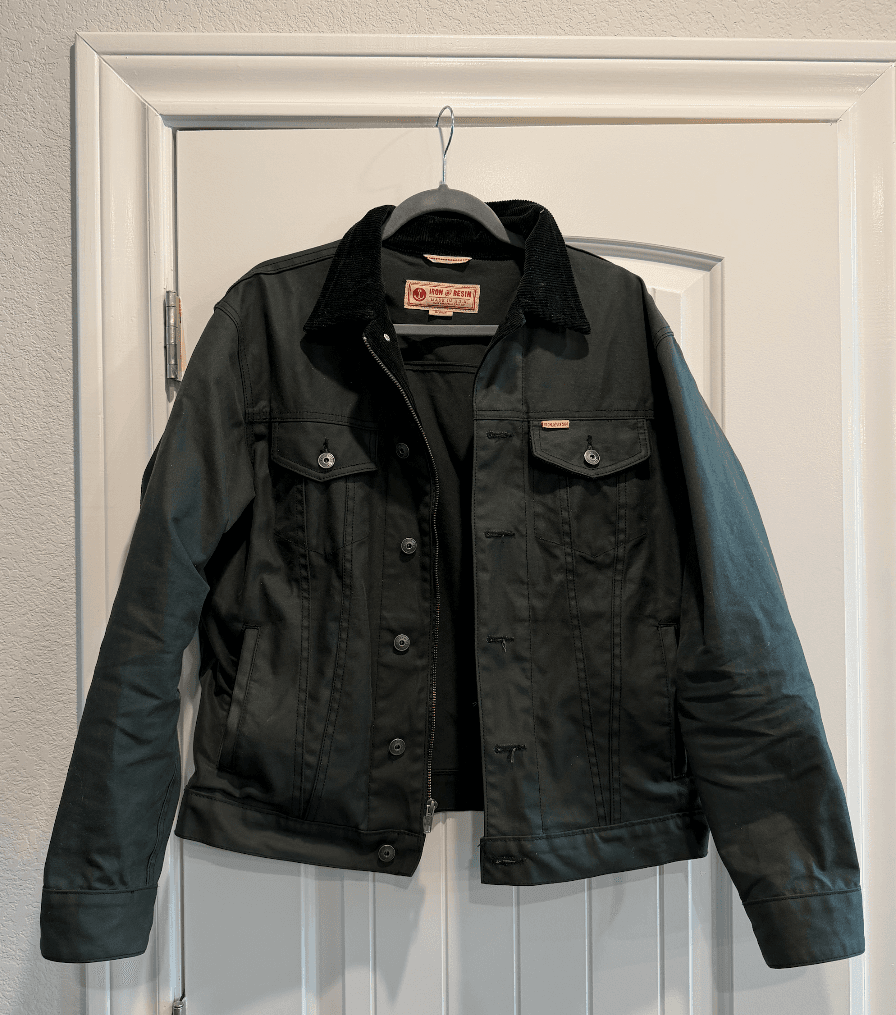
The AI can work with almost any photo, but better input means better output. Here's how to set yourself up for success:
Find Good Light
Position your product near a window. Natural light is flattering and free. Avoid direct sunlight, which creates harsh shadows. Overcast days are actually ideal.
If you don't have good natural light, a well-lit room works. Just avoid mixed lighting (like daylight from a window plus yellow lamp light).
Choose a Simple Background
The AI will replace whatever background you use, but it helps to start with something clean. A white wall, a plain table, or even a sheet of paper works fine.
Busy backgrounds can confuse the edge detection and result in artifacts around your product.
Fill the Frame
Get close to your product. It should take up most of the image. You want to capture detail, and cropping later reduces resolution.
Stay Steady
Hold your phone with both hands, or prop it against something stable. Blurry source photos produce blurry results.
Take Multiple Shots
Take 3-5 photos from slightly different angles. You can choose the best one, or use several for different generated styles.
Step 2: Upload Your Image
Once you have your photo:
- Go to the upload page
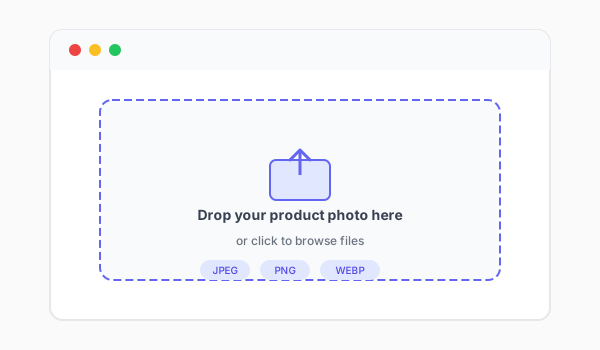
- Drag and drop your image, or click to browse
- Wait a few seconds for the upload to complete
The system accepts JPEG, PNG, and most standard image formats. Files up to 20MB work fine.
Step 3: Choose Your Styles
After upload, you'll see a grid of available photo styles. Each one generates a different type of image:
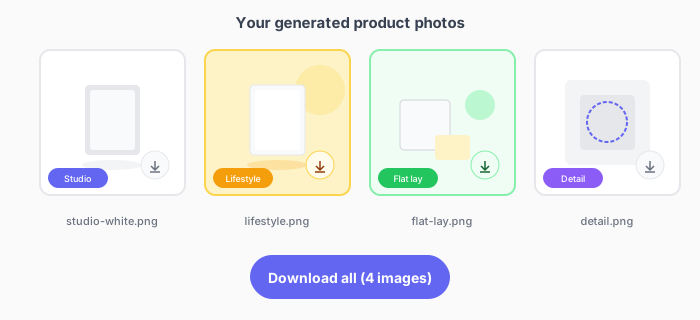
Studio White — Clean white background, perfect for marketplaces like Amazon
Lifestyle — Product in a natural setting appropriate for its category
Flat Lay — Top-down view on a styled surface
Detail — Close-up focusing on textures and craftsmanship
Minimalist — Simple, elegant backgrounds with subtle shadows
You can select multiple styles. Each one generates a separate image.
Step 4: Generate
Click the generate button. The AI will:
- Analyze your product
- Extract it from the background
- Generate new scenes for each selected style
- Enhance the final images
This typically takes 30-60 seconds per style. You'll see progress indicators while it works.
Step 5: Review and Download
When generation completes, you'll see your new images side by side. Click any image to view it at full resolution.
If you like what you see:
- Click "Download" to save individual images
- Use "Download All" to get everything at once
Images are high-resolution, ready for use on any platform.
Tips for Better Results
Source Photo Quality Matters
The AI can improve lighting and backgrounds, but it can't create detail that wasn't captured. A sharp, well-lit source photo produces noticeably better results than a dark, blurry one.
Try Different Angles
The same product photographed from different angles produces different results. Front view works for most products, but some look better from a 3/4 angle or slightly above.
Experiment With Styles
You might be surprised which styles work best for your products. A tech gadget might look great in lifestyle settings. A handmade item might benefit from the clean look of studio white.
Iterate
If your first results aren't quite right, try:
- A different source photo with better lighting
- Different angles
- Different style selections
Most users find their ideal workflow after a few attempts.
What's Next?
Once you've generated your first images, you can:
- Add more products to build out your catalog
- Try different styles to find what works best
- Download for your store and see the difference in your listings
Get started now — your first photos are free.
Ready to transform your product photos?
Upload a photo and see what AI can do. No credit card required.
Try it freeMore articles
Discover how artificial intelligence is changing the game for online sellers, making professional product photos accessible to everyone.
From studio white backgrounds to lifestyle shots, learn which photo styles work best for different products and platforms.
These common errors could be costing you sales. Learn what they are and how to fix them.